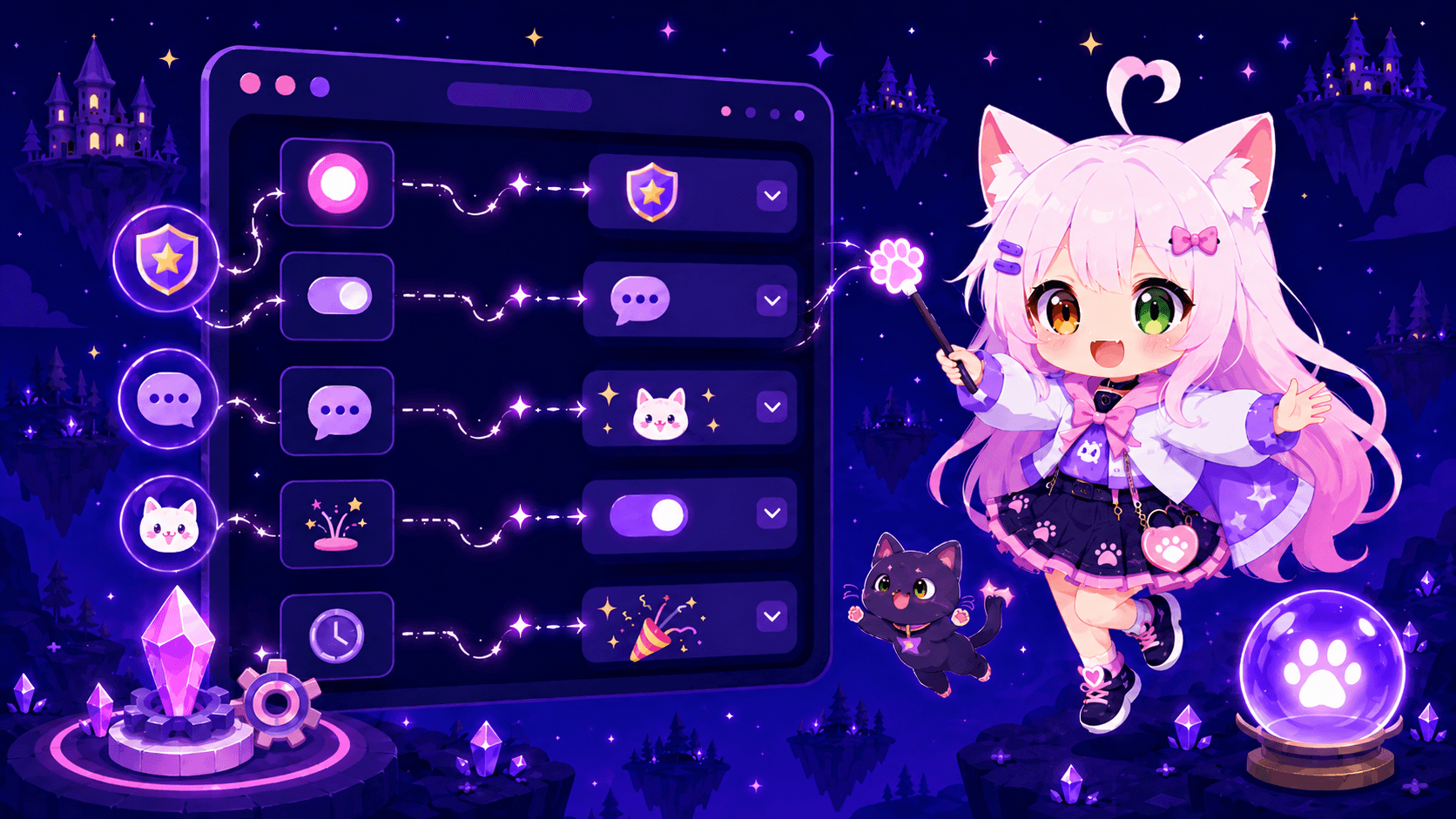
Server actions in Nekotina
Published on May 22nd, 20263 min read
Automate button and menu responses: roles, messages, threads, and more. The foundation for selfroles, tags, and interactive panels.
Server actions define what happens when someone clicks a button or uses an interactive component in Discord. They power selfroles, buttons in welcome messages, tags, and the Message Builder.
What is an action?
An action is a flow with one or more steps that Nekotina runs in order. Examples:
- Toggle a role when a button is clicked.
- Reply with an ephemeral confirmation message.
- Send a message to another channel.
- Create a private thread from the message.
Prerequisites
- Access to the dashboard.
- Nekotina's role above any roles you want to manage.
- Manage Roles permission if using role steps.
Step 1 — Create an action
- Go to Utilities → Actions.
- Click Create action.
- Set a clear name, e.g.
Give Gaming role.
Step 2 — Add steps
Available step types:
| Step | What it does |
|---|---|
| Toggle roles | Adds or removes a role |
| Add roles / Remove roles | Assign or remove specific roles |
| Reply with message | Reply in the channel (can be ephemeral) |
| Send message to channel | Post in a specific channel |
| Direct message user | Send a DM |
| Edit original message | Modify the message with the button |
| Delete original message | Delete the message |
| Create private thread | Open a thread from the message |
Example: confirmation when toggling a role
- Step 1 → Toggle roles → select
@Gaming. - Step 2 → Reply with message → mark Ephemeral → write
Role updated!

On the free plan you can only use 1 step per action. Button confirmations use a default non-editable message. With Premium you can chain up to 10 steps.
Step 3 — Advanced options
Under Advanced options you can restrict who can use the action:
- Allowed / ignored channels
- Allowed / ignored roles
- User or server cooldown (0–300 s)
Step 4 — Use the action in a message
Actions don't publish on their own — link them from:
| Module | How to link |
|---|---|
| Message Builder | Button → Server action type |
| Welcome | Buttons section |
| Tags | Tag buttons |
| Recurring messages | Message components |
The same action cannot be used on two buttons in the same message.
Variables in action messages
| Variable | Shows |
|---|---|
{{user.mention}} | Who clicked the button |
{{user.name}} | User's name |
{{server.name}} | Server name |
{{action.name}} | Action name |
Limits
| Free | Premium | |
|---|---|---|
| Steps per action | 1 | 10 |
| Chained actions on buttons | 5 | 5 |
| Custom confirmation | No | Yes |
Related guides
Common issues
Summary
1. Create action → Name
2. Add steps (role, message, etc.)
3. (Optional) Restrictions and cooldown
4. Link from a message with buttons
You can now create custom interactions on your server!