Create a custom command with Nekotina
Published on May 23rd, 20266 min read
Learn how to set up a custom command with an embed and GIF to wish a member happy birthday.
Custom commands let Nekotina respond to your server's own trigger words with messages, embeds, role actions, and more.
Scope of this guide: step-by-step tutorial for the happybirthday example. For advanced commands (variables, adjusting global economy or server shop balances), see the Nekotina wiki.
In this guide you'll create happybirthday, a command to wish a member happy birthday with an embed and a GIF.
If your server prefix is ! (Nekotina's default), usage looks like this:
!happybirthday @Kwee
In this example, Gwee runs the command and Kwee receives the birthday wish.
Note: this is different from the native Roleplay module, which includes commands like !hug or !kiss with a built-in anime GIF library. Here you create your own prefix command and upload the GIF you want to show in the embed.
For your members
Anyone allowed in the channel can run !commandName (or your server prefix). In this example:
!happybirthday @User
This does not replace the native birthdays module, which posts automatically each day without a command.
Prerequisites
Before you start, make sure that:
- You have access to the Nekotina dashboard with administrator permissions on the server.
- You know your server's command prefix (default
!in Nekotina; it can also be-,?, etc.). - Nekotina can send messages and embed links in the channel where you'll test the command.
- You have a GIF ready to upload (GIF, PNG, JPG, or WEBP format).
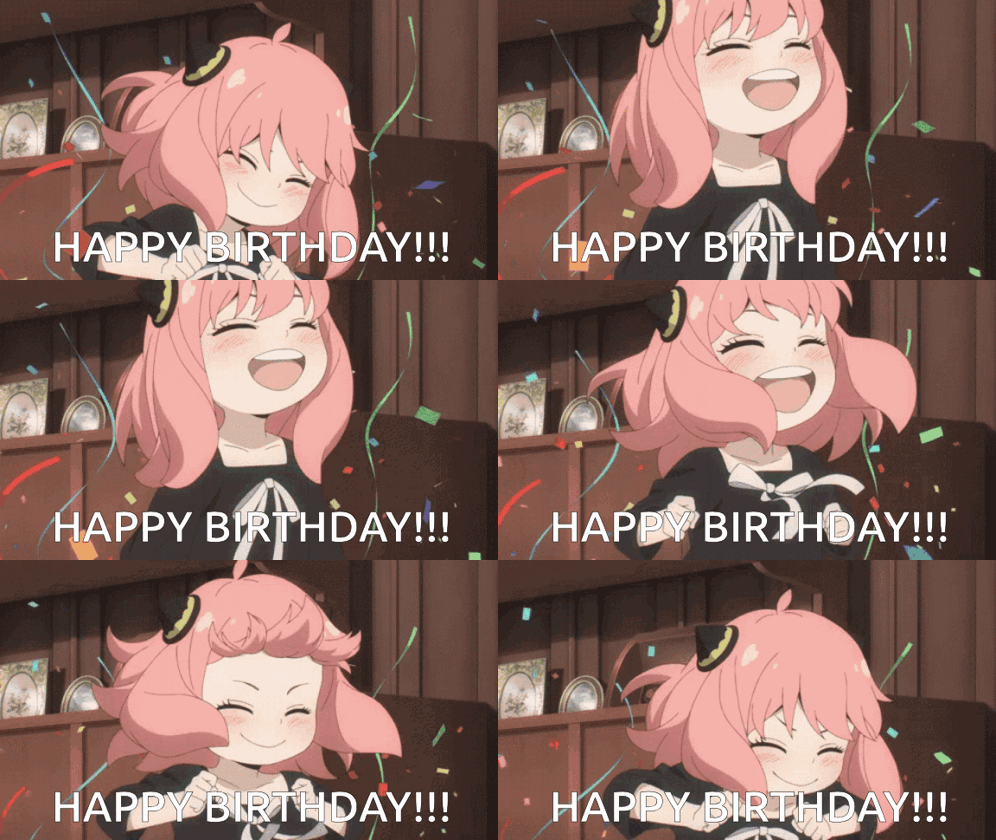
This is what the final response will look like when Gwee wishes Kwee happy birthday:
Happy birthday!
Step 1 — Create the command
- Open the dashboard and select your server.
- Go to Utilities → Custom Commands.
- Click Create command and choose Start from scratch.
- In the Command step, enter the trigger word:
happybirthday
- Add an optional description, for example:
Wish a server member happy birthday. - You can use the editor's basic mode; it's enough for this tutorial.
| Field | Suggested value |
|---|---|
| Trigger word | happybirthday |
| Description | Wish a server member happy birthday |
Step 2 — Add the member argument
The command needs to know who to congratulate. Add a Member argument:
- In the Arguments step (advanced mode) or during command setup, click Add argument.
- Configure the argument:
| Field | Value |
|---|---|
| Name | target |
| Type | Member |
| Description | Member you want to wish happy birthday |
How arguments work in messages
When someone types !happybirthday @Kwee, Discord splits the command into parts:
| Part typed | What it represents |
|---|---|
happybirthday | The command trigger word |
@Kwee | The value of the target argument |
Nekotina does not guess who you mean: you define what data the command expects (a member, a number, text…) and the user provides it after the command name. That value is stored under the name you gave the argument.
To use that value inside the message or embed, write a variable in this format:
{{arg.argument-name}}
In our case the argument is named target, so the variable is:
{{arg.target}}
Important rules:
- The text after
arg.must match the argument name exactly. If you named ittarget, write{{arg.target}}; if you name itbirthdayMember, it would be{{arg.birthdayMember}}. - If the name does not match, Nekotina cannot replace the variable and the message may show the literal text or fail.
- Member arguments can be used as a mention (
@Kwee) or, with other variables, as an avatar ({{arg.target.avatar}}). - If you add more than one argument, they are read in order. For example,
!happybirthday @Kweefills the first argument; a second argument would come after it.
Example of how configuration and message fit together:
| Where you configure it | Value |
|---|---|
| Argument name | target |
| Type | Member |
| Embed description | {{user.mention}} wishes {{arg.target}} a happy birthday 🎂 |
When Gwee runs !happybirthday @Kwee, Nekotina replaces:
{{user.mention}}→ Gwee's mention (whoever ran the command){{arg.target}}→ Kwee's mention (the member Gwee specified)
Usage in Discord:
!happybirthday @Kwee
Step 3 — Set up the Send message action
- Go to the Actions step.
- Add a Send message action (responds in the same channel where the command was used).
- Click Add to message and select Embeds.
This is what the embed looks like before adding the GIF:
Step 4 — Configure the embed
In the embed editor, fill in the main fields:
| Field | Value |
|---|---|
| Title | Happy birthday! |
| Description | {{user.mention}} wishes {{arg.target}} a happy birthday 🎂 |
| Color | #ff5dd6 |
| Image | Upload your birthday GIF |
Useful variables:
| Variable | What it shows |
|---|---|
{{user.mention}} | Mention of whoever runs the command (Gwee) |
{{user.name}} | Display name of whoever runs the command |
{{arg.target}} | Mention of the chosen member (Kwee) |
In Message settings, enable User mentions so Discord resolves embed mentions correctly.
Step 5 — Access and cooldown (optional)
In the Access step you can fine-tune who uses the command and how often:
| Option | Suggestion for happybirthday |
|---|---|
| User cooldown | 5 seconds (prevents birthday spam) |
| Allowed channels | Only #general or #birthdays, if you prefer |
| Hide execution | Off (the !happybirthday @Kwee message stays visible) |
If you don't set restrictions, any member can use the command in any channel the bot is allowed to write in.
Step 6 — Save and test
- Review the editor's Summary step.
- Click Save.
- In Discord, run the command with a real member:
!happybirthday @Kwee
Nekotina will post the embed with the GIF in the channel. If Gwee runs it, the description will show both mentions.
Happy birthday!
Limits to keep in mind
| Free | Premium | |
|---|---|---|
| Commands per server | 10 | 100 |
| Actions per command | 1 | 10 |
| Required arguments | 10 | 10 |
| Embeds per message | 10 | 10 |
| Maximum cooldown | 300 s | 300 s |
With Premium you can chain multiple actions (for example, give a birthday role in addition to the message). On the free plan, the Send message action is enough for this tutorial.
Tips
- Use an optimized GIF (small file size) so it loads quickly on Discord.
- The argument name (
target) must match what you write in{{arg.target}}. - Don't include the prefix in the trigger word: write
happybirthday, not!happybirthday. - You can duplicate the command and swap the GIF for variants like
happybirthday-vip.
Common issues
Go further
If you enable advanced mode, you can add multiple embeds and choose Send a random embed so Nekotina shows a different birthday message each time (similar to the Comfort template in the dashboard). You can also use computed variables to pick random phrases.
Flow summary
1. Create command → Trigger word happybirthday
2. Add argument → target (Member)
3. Action → Send message with embed
4. Embed → Description with variables + color + GIF
5. Save → Test with !happybirthday @Kwee
Done! You now have a custom birthday command on your server with Nekotina.