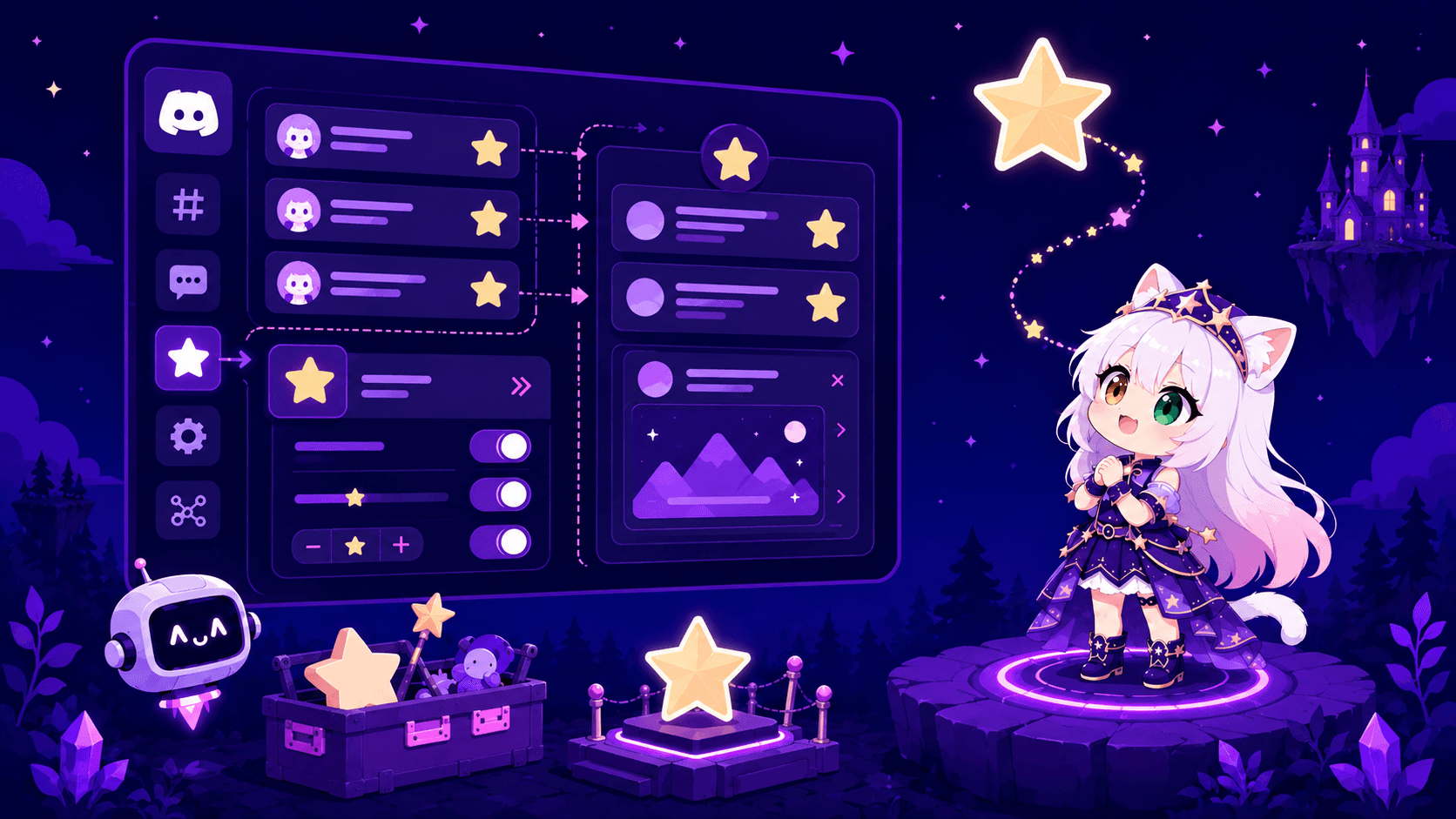
Set up a starboard with Nekotina
Published on May 25th, 20262 min read
Highlight your server's best messages when they get enough star reactions.
Ads
The starboard copies popular messages to a dedicated channel when they reach a minimum number of reactions with a specific emoji (default ⭐). Great for surfacing quality content in active communities.
Prerequisites
- Access to the dashboard.
- A channel for the starboard, e.g.
#starboardor#highlights. - Nekotina needs: Manage Webhooks, View Channel, Read Message History, Add Reactions.
Step 1 — Basic setup
- Go to Entertainment → Starboard.
- Configure:
| Field | Description |
|---|---|
| Stars required | Minimum reactions (1–50, default 3) |
| Starboard channel | Where featured messages are posted |
| Ignore author's reaction | Don't count the author's own star |
| React to featured messages | Nekotina adds ⭐ to the reposted message |
- Save changes.
Step 2 — Channels and roles (optional)
Restrict where the starboard works:
- Allowed channels — only these channels can generate entries.
- Ignored channels — exclude channels (up to 10 each).
- Allowed / ignored roles — filter by who posts.
Don't use the same channel or role in both allowed and ignored lists.
How it works in Discord
- A member posts in a monitored channel.
- Others react with ⭐ (or the configured emoji).
- When the threshold is met, Nekotina reposts the message in the starboard channel with a link to the original.
Preview

NekotinaAPP
⭐ 3 | #general
A message the community appreciated.
A message the community appreciated.
For your members
Anyone can feature messages by reacting with the configured emoji (default ⭐) in allowed channels. When a message hits the threshold, Nekotina reposts it in the starboard channel with a link to the original.
- No command needed — just react.
- If Ignore author reaction is on, the author's own star doesn't count.
- Great for memes, fan art, or helpful posts the community wants to keep.
Tips
- Start with 3–5 stars and adjust based on server activity.
- Exclude bot or spam channels with ignored channels.
- Combine with moderation logs to audit activity.
Common issues
Summary
1. Entertainment → Starboard
2. Stars required + destination channel
3. (Optional) Channel/role filters
4. Save changes